
How to Share Your Computer’s System Info with Us (In 5 Easy Steps!)
Hey there!
If you’re experiencing a few tech hiccups and we’ve been chatting about getting your computer sorted, there’s a really quick way you can help us look "under the hood" of your PC before it is even brought into the workshop.
By sharing your Windows System Information report, you give us a neat snapshot of your computer's hardware and settings. This helps us spot potential software bugs, outdated drivers, or hardware issues right out of the gate, saving you time and hassle.
Wait, is it safe to share?
We get this question a lot, and the answer is a resounding yes!
The report we are asking for only contains technical specs about the machine itself. It tells us things like what processor you have, how much memory (RAM) is installed, and which version of Windows you're running.
It does NOT contain:
Any of your personal documents, photos, or files.
Your passwords, browser history, or personal data.
Personal details like your name, email, or address.
Think of it like giving a mechanic the exact make, model, and engine size of your car so they can order the right parts. It’s completely private, entirely safe, and incredibly helpful for us to get to work on a solution for you.
How to Export Your System Info (Works for Windows 10 & 11)
We’ve broken this down into five very simple steps. Don't worry if you aren't a tech wizard—just follow along, and feel free to use the screenshots below as a guide!
Step 1: Click the Start button
Look at the bottom of your screen and click on the Start button.
Step 2: Start typing 'System Information'
You don’t need to click into a special search bar to do this. As soon as that Start menu pops open, just start typing the words "System Information" on your keyboard.
Step 3: Open the System Information app
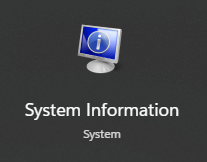
You will see an app called System Information pop up at the top of your search results (it usually looks like a tiny computer screen with a blue graph). Click on it to open it up.
Step 4: Click File, then Export
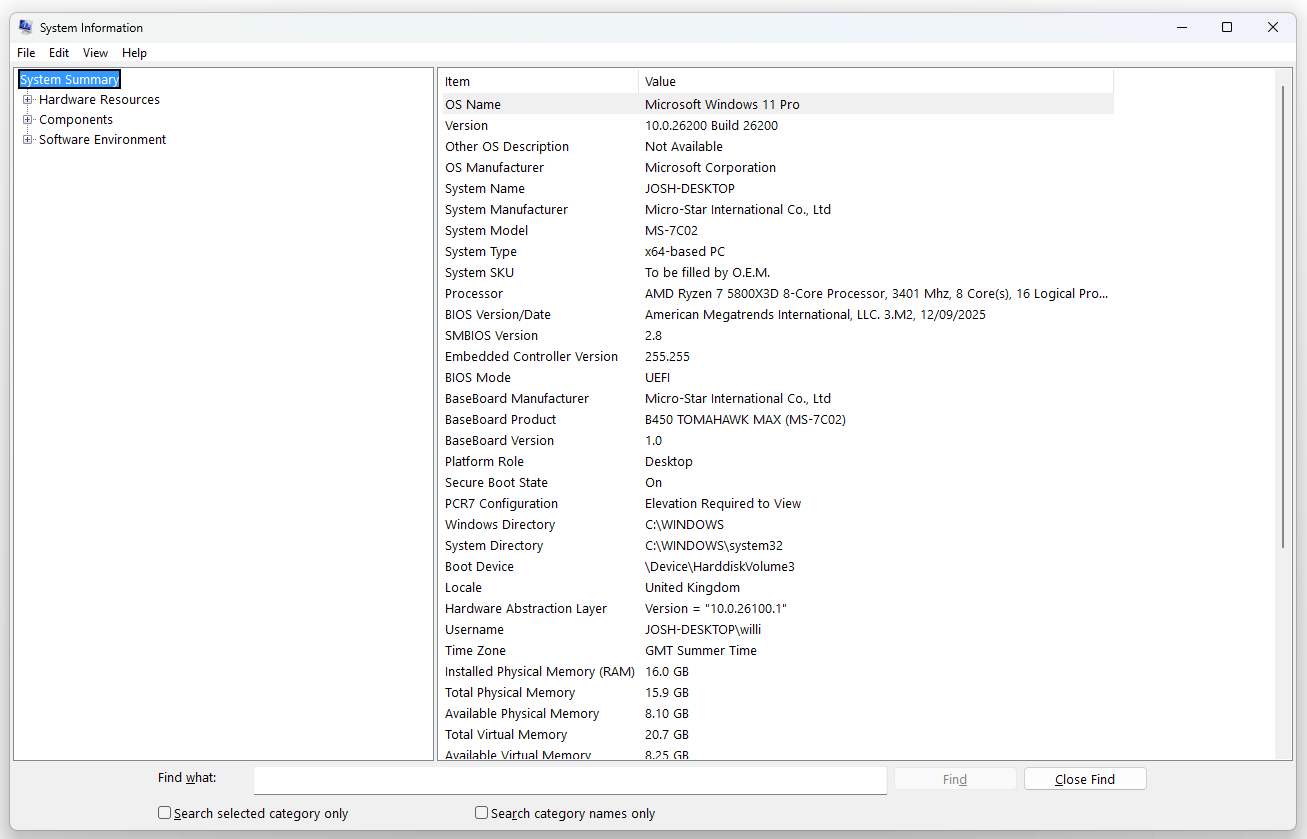
A big window will open up filled with lots of techy-looking numbers and words (don't worry about trying to read or understand any of that, that’s our job!).
Look at the very top-left corner of that window. Click on File, and then click on Export... from the drop-down menu.
Step 5: Save the file under any name
A new box will pop up asking you where you want to save the file.
On the left side of the box, choose an easy place to find it, like your Desktop or Downloads folder.
In the "File name" box at the bottom, type any name you like (something simple like MyPCSpecs works perfectly).
Click the Save button.
What to do next?
And that's it, you're all done! Windows will take a few seconds to create a standard text file on your computer.
Once it’s saved, simply reply to our messages or email, attach that new text file, and send it over to us. We’ll take a look through the specs and get back to you with the next steps to get your computer running perfectly again.
If you hit any snags or get stuck along the way, don't sweat it, just drop us a line and we'll happily guide you through it!
